# Export Teleport Audit Events with Fluentd
Teleport's Event Handler plugin receives audit events from the Teleport Auth Service and forwards them to your log management solution, letting you perform historical analysis, detect unusual behavior, and form a better understanding of how users interact with your Teleport cluster.
Fluentd is an open source data collector for a unified logging layer.
This guide also serves as an explanation for the Teleport Event Handler plugin, using Fluentd as the target service.
## How it works
The Teleport Event Handler authenticates to the Teleport Auth Service to receive audit events over a gRPC stream, then sends those events to Fluentd as JSON payloads over a secure channel established via mutual TLS.
In this demo, we'll create a local Docker container for Fluentd as a destination for the Event Handler:
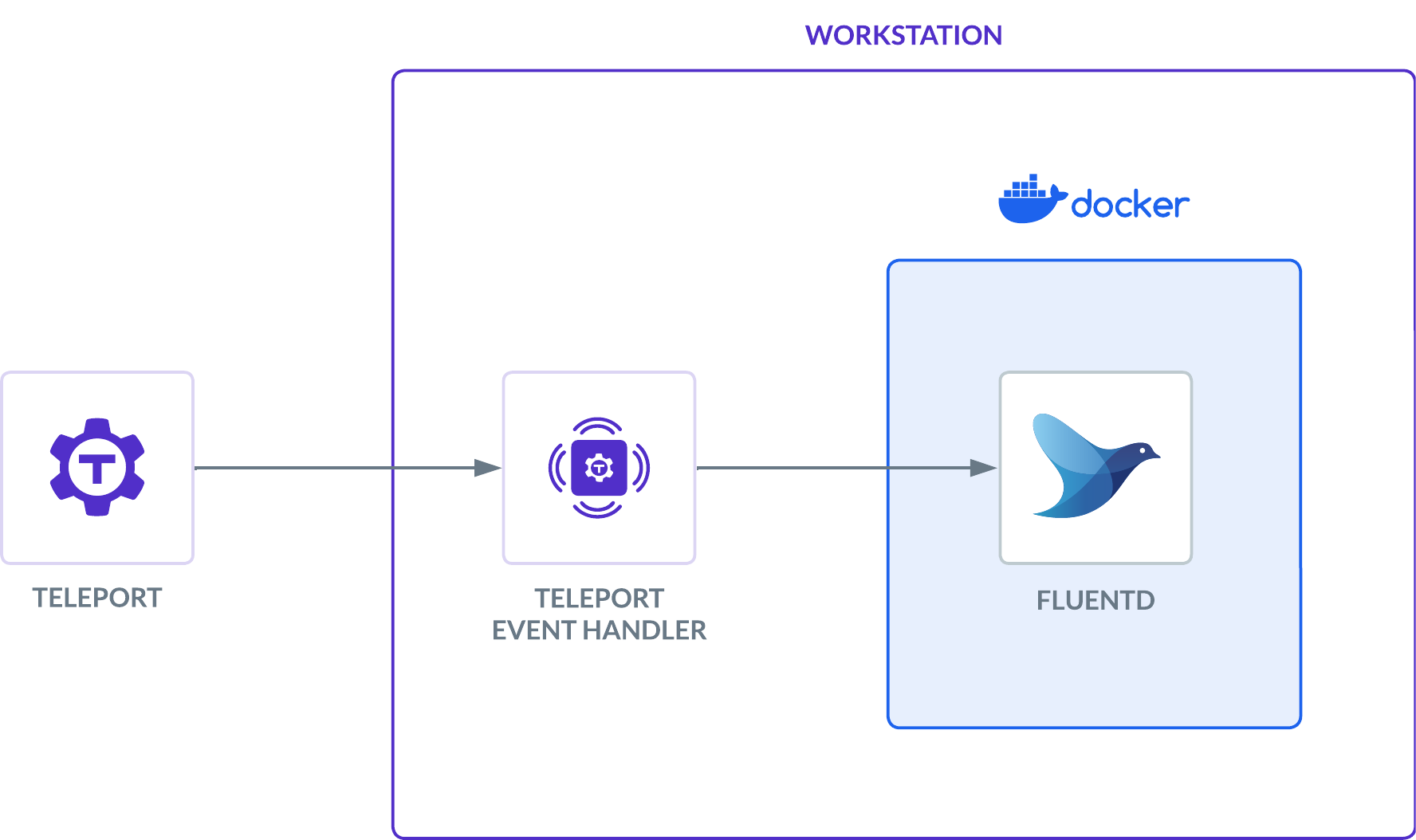
You can follow the instructions below for a local proof-of-concept demo, or use any of the additional installation instructions to configure the Teleport Event Handler to integrate with your infrastructure.
## Prerequisites
- Fluentd version v1.12.4 or greater. The Teleport Event Handler will create a new `fluent.conf` file you can integrate into an existing Fluentd system, or use with a fresh setup.
- A server, virtual machine, Kubernetes cluster, or Docker environment to run the Teleport Event Handler plugin.
This guide requires you to have completed one of the Event Handler setup guides:
- [Set up the Event Handler with tctl](https://goteleport.com/docs/zero-trust-access/export-audit-events/event-handler-setup.md)
- [Set up the Event Handler with the Teleport Kubernetes Operator](https://goteleport.com/docs/zero-trust-access/export-audit-events/event-handler-setup-operator.md)
The instructions below demonstrate a local test of the Event Handler plugin on your workstation. You will need to adjust paths, ports, and domains for other environments.
## Step 1/2. Start the Fluentd forwarder
The Fluentd plugin will send events to your Fluentd instance using keys generated on the previous step.
The `fluent.conf` file generated in the prerequisite setup guide configures your Fluentd instance to accept events using TLS and print them:
```
@type http
port 8888
client_cert_auth true
# We are going to run fluentd in Docker. /keys will be mounted from the host file system.
ca_path /keys/ca.crt
cert_path /keys/server.crt
private_key_path /keys/server.key
private_key_passphrase ********** # Passphrase generated along with the keys
@type json
json_parser oj
# This time format is used by the plugin. This field is required.
time_type string
time_format %Y-%m-%dT%H:%M:%S
# If the number of events is high, fluentd will start failing the ingestion
# with the following error message: buffer space has too many data errors.
# The following configuration prevents data loss in case of a restart and
# overcomes the limitations of the default fluentd buffer configuration.
# This configuration is optional.
# See https://docs.fluentd.org/configuration/buffer-section for more details.
@type file
flush_thread_count 8
flush_interval 1s
chunk_limit_size 10M
queue_limit_length 16
retry_max_interval 30
retry_forever true
# Events sent to test.log will be dumped to STDOUT.
@type stdout
```
To try out this Fluentd configuration, start your Fluentd instance:
```
$ docker run -u $(id -u ${USER}):$(id -g ${USER}) -p 8888:8888 -v $(pwd):/keys -v $(pwd)/fluent.conf:/fluentd/etc/fluent.conf fluent/fluentd:edge
```
This will consume your current terminal, so open a new one to continue following along.
## Step 2/2. Run the Event Handler plugin
In this section, you will modify the Event Handler configuration you generated and run the Event Handler to test your configuration.
### Configure the Event Handler
Edit the configuration for the Event Handler, depending on your installation method.
**Executable**
Earlier, we generated a file called `teleport-event-handler.toml` to configure the Teleport Event Handler. This file includes setting similar to the following:
```
storage = "./storage"
timeout = "10s"
batch = 20
# concurrency is the number of concurrent sessions to process. By default, this is set to 5.
concurrency = 5
# The window size configures the duration of the time window for the event handler
# to request events from Teleport. By default, this is set to 24 hours.
# Reduce the window size if the events backend cannot manage the event volume
# for the default window size.
# The window size should be specified as a duration string, parsed by Go's time.ParseDuration.
window-size = "24h"
# types is a comma-separated list of event types to search when forwarding audit
# events. For example, to limit forwarded events to user logins
# and new Access Requests, you can assign this field to
# "user.login,access_request.create".
types = ""
# skip-event-types is a comma-separated list of audit log event types to skip.
# For example, to forward all audit events except for new app deletion events,
# you can include the following assignment:
# skip-event-types = ["app.delete"]
skip-event-types = []
# skip-session-types is a comma-separated list of session recording event types to skip.
# For example, to forward all session events except for malformed SQL packet
# events, you can include the following assignment:
# skip-session-types = ["db.session.malformed_packet"]
skip-session-types = []
[forward.fluentd]
ca = /home/bob/event-handler/ca.crt
cert = /home/bob/event-handler/client.crt
key = /home/bob/event-handler/client.key
url = "https://fluentd.example.com:8888/test.log"
session-url = "https://fluentd.example.com:8888/session"
[teleport]
addr = teleport.example.com:443
identity = "identity"
```
**Helm Chart**
Earlier, we generated a file called `teleport-plugin-event-handler-values.yaml` to configure the Teleport Event Handler. This file includes setting similar to the following:
```
eventHandler:
storagePath: "./storage"
timeout: "10s"
batch: 20
# concurrency is the number of concurrent sessions to process. By default, this is set to 5.
concurrency: 5
# The window size configures the duration of the time window for the event handler
# to request events from Teleport. By default, this is set to 24 hours.
# Reduce the window size if the events backend cannot manage the event volume
# for the default window size.
# The window size should be specified as a duration string, parsed by Go's time.ParseDuration.
windowSize: "24h"
# types is a list of event types to search when forwarding audit
# events. For example, to limit forwarded events to user logins
# and new Access Requests, you can assign this field to:
# ["user.login", "access_request.create"]
types: []
# skipEventTypes lists types of audit events to skip. For example, to forward all
# audit events except for new app deletion events, you can assign this to:
# ["app.delete"]
skipEventTypes: []
# skipSessionTypes lists types of session recording events to skip. For example,
# to forward all session events except for malformed SQL packet events,
# you can assign this to:
# ["db.session.malformed_packet"]
skipSessionTypes: []
teleport:
address: teleport.example.com:443
identitySecretName: teleport-event-handler-identity
identitySecretPath: identity
fluentd:
url: "https://fluentd.fluentd.svc.cluster.local/events.log"
sessionUrl: "https://fluentd.fluentd.svc.cluster.local/session.log"
certificate:
secretName: "teleport-event-handler-client-tls"
caPath: "ca.crt"
certPath: "client.crt"
keyPath: "client.key"
persistentVolumeClaim:
enabled: true
```
**Helm Chart with Kubernetes Operator**
Your helm configuration file `teleport-plugin-event-handler-values.yaml` should contain settings similar to the following:
```
eventHandler:
storagePath: "./storage"
timeout: "10s"
batch: 20
# concurrency is the number of concurrent sessions to process. By default, this is set to 5.
concurrency: 5
# The window size configures the duration of the time window for the event handler
# to request events from Teleport. By default, this is set to 24 hours.
# Reduce the window size if the events backend cannot manage the event volume
# for the default window size.
# The window size should be specified as a duration string, parsed by Go's time.ParseDuration.
windowSize: "24h"
# types is a list of event types to search when forwarding audit
# events. For example, to limit forwarded events to user logins
# and new Access Requests, you can assign this field to:
# ["user.login", "access_request.create"]
types: []
# skipEventTypes lists types of audit events to skip. For example, to forward all
# audit events except for new app deletion events, you can assign this to:
# ["app.delete"]
skipEventTypes: []
# skipSessionTypes lists types of session recording events to skip. For example,
# to forward all session events except for malformed SQL packet events,
# you can assign this to:
# ["db.session.malformed_packet"]
skipSessionTypes: []
crd:
create: true
namespace: operator-namespace
tbot:
enabled: true
clusterName: teleport.example.com
teleportProxyAddress: teleport.example.com:443
fluentd:
url: "https://fluentd.fluentd.svc.cluster.local/events.log"
sessionUrl: "https://fluentd.fluentd.svc.cluster.local/session.log"
certificate:
secretName: "teleport-event-handler-client-tls"
caPath: "ca.crt"
certPath: "client.crt"
keyPath: "client.key"
persistentVolumeClaim:
enabled: true
```
Update the following fields.
**Executable**
**`[teleport]`**
`addr`: Include the hostname and HTTPS port of your Teleport Proxy Service or Teleport Enterprise Cloud account: teleport.example.com:443
`identity`: Fill this in with the path to the identity file you exported earlier.
If you are providing credentials to the Event Handler using a `tbot` binary that runs on a Linux server, make sure the value of `identity` in the Event Handler configuration is the same as the path of the identity file you configured `tbot` to generate, `/opt/machine-id/identity`.
**`[forward.fluentd]`**
`ca`: Include the path to the CA certificate: /home/bob/event-handler/ca.crt
`cert`: Include the path to the Fluentd client certificate. /home/bob/event-handler/client.crt
`key`: Include the path to the Fluentd client key. /home/bob/event-handler/client.key
`url`: Include the Fluentd URL where the audit event logs will be sent.
`session-url`: Include the Fluentd URL where the session logs will be sent.
**Helm Chart**
**`teleport`**
`address`: Include the hostname and HTTPS port of your Teleport Proxy Service or Teleport Enterprise Cloud account: teleport.example.com:443
`identitySecretName`: Fill in the `identitySecretName` field with the name of the Kubernetes secret you created earlier.
`identitySecretPath`: Fill in the `identitySecretPath` field with the path of the identity file within the Kubernetes secret. If you have followed the instructions above, this will be `identity`.
**`fluentd`**
`url`: Include the Fluentd URL where the audit event logs will be sent.
`sessionUrl`: Include the Fluentd URL where the session logs will be sent.
`certificate.secretName`: Include the name of the Kubernetes secret containing the Fluentd client credentials. If you have followed the instructions above, this will be `teleport-event-handler-client-tls`.
`certificate.caPath`: Include the path to the CA certificate inside the secret.
`certificate.certPath`: Include the path to the Fluentd client certificate inside the secret.
`certificate.keyPath`: Include the path to the Fluentd client key inside the secret.
**Helm Chart with Kubernetes Operator**
**`crd`**
`namespace`: Include the namespace that the Teleport Kubernetes Operator is running in: operator-namespace
`tokenSpecOverride`: Optionally include a specific join token specification for the bot user that `tbot` will authenticate as.
**`tbot`**
`clusterName`: Include the name of your Teleport cluster: teleport.example.com
`teleportProxyAddress`: Include the hostname and HTTPS port of your Teleport Proxy Service or Teleport Enterprise Cloud account: teleport.example.com:443
**`fluentd`**
`url`: Include the Fluentd URL where the audit event logs will be sent.
`sessionUrl`: Include the Fluentd URL where the session logs will be sent.
`certificate.secretName`: Include the name of the Kubernetes secret containing the Fluentd client credentials. If you have followed the instructions above, this will be `teleport-event-handler-client-tls`.
`certificate.caPath`: Include the path to the CA certificate inside the secret.
`certificate.certPath`: Include the path to the Fluentd client certificate inside the secret.
`certificate.keyPath`: Include the path to the Fluentd client key inside the secret.
### Start the Event Handler
Start the Teleport Event Handler by following the instructions below.
**Linux server**
Copy the `teleport-event-handler.toml` file to `/etc` on your Linux server. Update the settings within the `toml` file to match your environment. Make sure to use absolute paths on settings such as `identity` and `storage`. Files and directories in use should only be accessible to the system user executing the `teleport-event-handler` service such as `/var/lib/teleport-event-handler`.
Next, create a systemd service definition at the path `/usr/lib/systemd/system/teleport-event-handler.service` with the following content:
```
[Unit]
Description=Teleport Event Handler
After=network.target
[Service]
Type=simple
Restart=always
ExecStart=/usr/local/bin/teleport-event-handler start --config=/etc/teleport-event-handler.toml --teleport-refresh-enabled=true
ExecReload=/bin/kill -HUP $MAINPID
PIDFile=/run/teleport-event-handler.pid
[Install]
WantedBy=multi-user.target
```
If you are not using Machine & Workload Identity to provide short-lived credentials to the Event Handler, you can remove the `--teleport-refresh-enabled true` flag.
Enable and start the plugin:
```
$ sudo systemctl enable teleport-event-handler
$ sudo systemctl start teleport-event-handler
```
Choose when to start exporting events
You can configure when you would like the Teleport Event Handler to begin exporting events when you run the `start` command. This example will start exporting from May 5th, 2021:
```
$ teleport-event-handler start --config /etc/teleport-event-handler.toml --start-time "2021-05-05T00:00:00Z"
```
You can only determine the start time once, when first running the Teleport Event Handler. If you want to change the time frame later, remove the plugin state directory that you specified in the `storage` field of the handler's configuration file.
Once the Teleport Event Handler starts, you will see notifications about scanned and forwarded events:
```
$ sudo journalctl -u teleport-event-handler
DEBU Event sent id:f19cf375-4da6-4338-bfdc-e38334c60fd1 index:0 ts:2022-09-21
18:51:04.849 +0000 UTC type:cert.create event-handler/app.go:140
...
```
**Helm chart**
Run the following command on your workstation:
```
$ helm install teleport-plugin-event-handler teleport/teleport-plugin-event-handler \
--values teleport-plugin-event-handler-values.yaml \
--version 18.7.3
```
**Local Docker container**
Navigate to the directory where you ran the `configure` command earlier and execute the following command:
```
$ docker run --network host -v `pwd`:/opt/teleport-plugin -w /opt/teleport-plugin public.ecr.aws/gravitational/teleport-plugin-event-handler:18.7.3 start --config=teleport-event-handler.toml
```
This command joins the Event Handler container to the preset `host` network, which uses the Docker host networking mode and removes network isolation, so the Event Handler can communicate with the Fluentd container on `localhost`.
## Troubleshooting connection issues
If the Teleport Event Handler is displaying error logs while connecting to your Teleport Cluster, ensure that:
- The certificate the Teleport Event Handler is using to connect to your Teleport cluster is not past its expiration date. This is the value of the `--ttl` flag in the `tctl auth sign` command, which is 12 hours by default.
- In your Teleport Event Handler configuration file, you have provided the correct host *and* port for the Teleport Proxy Service.
- Start the Fluentd container prior to starting the Teleport Event Handler. The Event Handler will attempt to connect to Fluentd immediately upon startup.
## Next steps
- See instructions to configure dedicated integrations in the navigation sidebar under [Audit Event Export](https://goteleport.com/docs/zero-trust-access/export-audit-events.md).
- To see all of the options you can set in the values file for the `teleport-plugin-event-handler` Helm chart, consult our [reference guide](https://goteleport.com/docs/reference/helm-reference/teleport-plugin-event-handler.md).